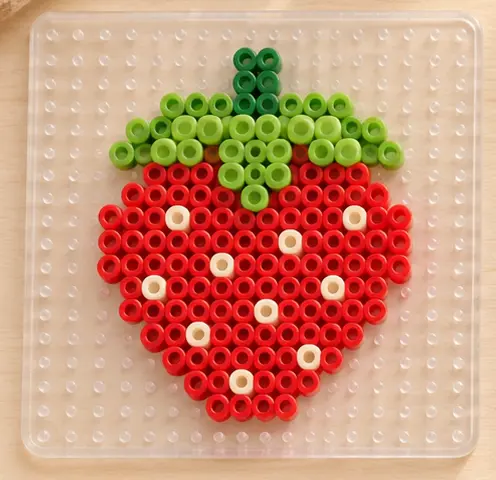
A strawberry charm
Begin with a compact red silhouette and green leaves. Use Brush for the outline, Fill for the center, and a few pale beads for seeds. Keep the stem connected to the fruit and check that no bead floats on its own.
Draw on a blank pegboard or touch up a converted picture, one bead at a time. Match the colors to your bead stash, check how many you need, and print a chart to follow as you build.

Start with an image, try our sample, or draw on a blank grid.
Start with New for a blank pegboard, continue your saved draft, or edit a converted pattern. Use Brush and Fill to create shapes, Erase to open gaps, and Replace color to update every matching bead.
Choose a bead palette and board dimensions. Design letters, small sprites, geometric patterns, or an original piece from scratch.
Zoom into details, pick existing colors, and undo changes as you experiment. The color panel counts the beads used in your current design.
Export a tiled PDF and materials CSV, or switch to Follow pattern to mark beads as you place them. Your progress saves on this device.
Starting with a picture? Convert a photo to a bead pattern, then open the result here.
| Task | Homepage converter | Pattern editor |
|---|---|---|
| Start a design | Upload a photo or illustration. | Draw on a blank grid or open a converted pattern. |
| Change the result | Adjust the width and number of colors to regenerate the preview. | Paint individual beads, fill an area, or replace a color across the grid. |
| Prepare to build | Download the PNG or choose Designer to keep editing. | Print a tiled chart, export a materials CSV, or mark beads as you place them. |
Practice an outline with the strawberry, place facial details on the cat, or count a repeating border on the coaster.
Begin with a compact red silhouette and green leaves. Use Brush for the outline, Fill for the center, and a few pale beads for seeds. Keep the stem connected to the fruit and check that no bead floats on its own.
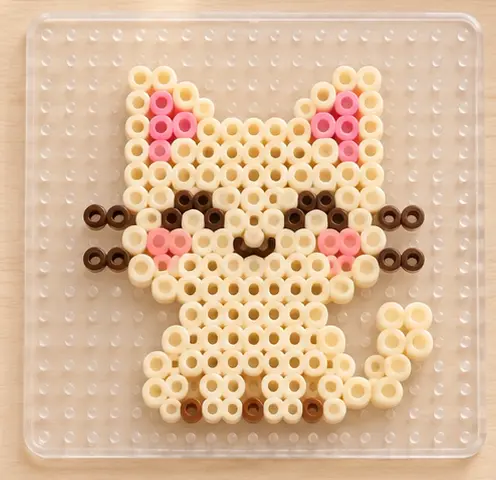
Draw one side of the face, then compare the ears, eyes and cheeks as you work across the grid. Pick an existing color to keep outlines consistent. Zoom in to remove stray beads and preserve the expression with just a few colors.
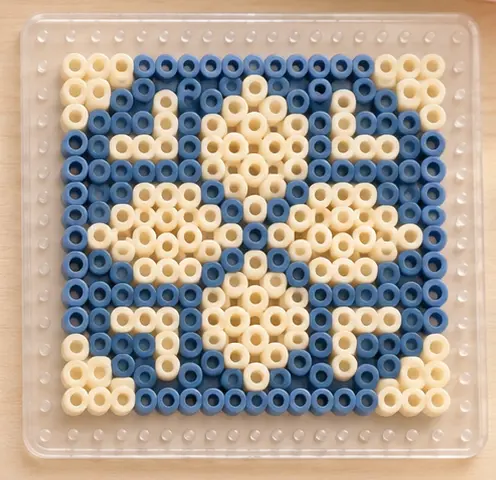
Build a repeating border around a simple center. Count rows to keep the edges even and use Replace color to try another palette. Check dimensions and board joins before planning a larger piece.
Choose a width and height for a blank grid, or import a picture and set its width in beads.
Paint or erase individual beads, fill a connected area, and undo a change.
Search your brand’s palette by code, pick a color from the grid, or replace it throughout the pattern.
Check how many beads of each color you need as you edit.
Open Follow pattern and mark the beads you’ve placed on your pegboard.
Save a PNG reference, print a tiled chart, or download color codes and quantities as a CSV.
The homepage converts an uploaded photo or illustration into a bead pattern automatically. This page is the editor: start on a blank grid or adjust a converted design bead by bead. Use the homepage when you need an initial conversion; use this workspace to draw, clean up details and prepare to build.
On the homepage, generate your preview and choose Designer. The image, settings and pattern transfer into this editor so you can continue refining the same design.
Yes. Choose New to create a blank pattern, set its dimensions and select a bead palette. Use Brush to place beads and Erase to leave empty spaces. Export your current work before replacing a draft you want to keep.
Fill changes a connected area. Replace color changes every bead using the selected color across the pattern. Use Fill for one shape and Replace color for a palette-wide substitution. Undo lets you reverse an edit.
PNG is useful for a quick image reference. Print / PDF prepares a printable chart, including tiled pages for larger designs. Materials CSV gives you the color codes and quantities used in the current pattern so you can organize supplies.
The workspace saves a local draft on this device. It does not sync between browsers or devices. Clearing browser storage can remove it, so export important work before leaving or switching devices.
Choose Follow pattern to track placement on screen. Check the grid and color codes while working and mark your progress. Return to Edit when you need to change the actual design.
Screen colors are approximate. Choose the palette that matches your supplies and compare important shades with actual beads. Check narrow joins, isolated beads and pegboard dimensions before you start assembling.